Uploading
After exporting, upload your project to the Connec2 Web Portal.
Where do you upload?
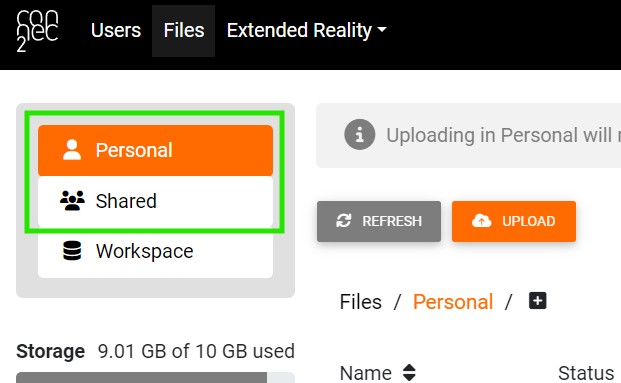
You can choose between:
Personal→ only you can access the projectShared→ everyone in your workspace has access
Create a folder (recommended)
Uploading to the Shared folder? Create your own folder first (e.g. your name) to keep things organized.
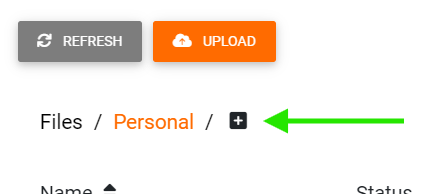
Click the + icon, give your folder a name, and then click the green checkmark.
Upload
Drag your project folder (from the export folder) into the browser window and click Upload.
Processing time
After uploading, your files will be processed.
Pending→ still processingAvailable→ ready to use
Refresh the page if needed. Depending on the size of your project, this may take some time.
Your project is now in the cloud and ready to be opened in the headset.
Last updated on