Load in XR
After uploading, you can open your project in the VR headset.
Start
Turn on your VR headset and open the Connec2 app.
Don’t have the Connec2 app installed on your headset yet?
Install Connec2 on your VR headset
Tip: open this in a new tab so you can continue following these steps.
After launching the Connec2 app, you will enter the Metaspace, an empty virtual canvas where you can load your projects.
Depending on your settings, this will be either a virtual or mixed reality environment.
Open the menu
Open the menu:
- Controller → press the
menu button(left) - Hand tracking → look at your left wrist and tap the button
- Windows → click the menu icon in the bottom-left of your screen
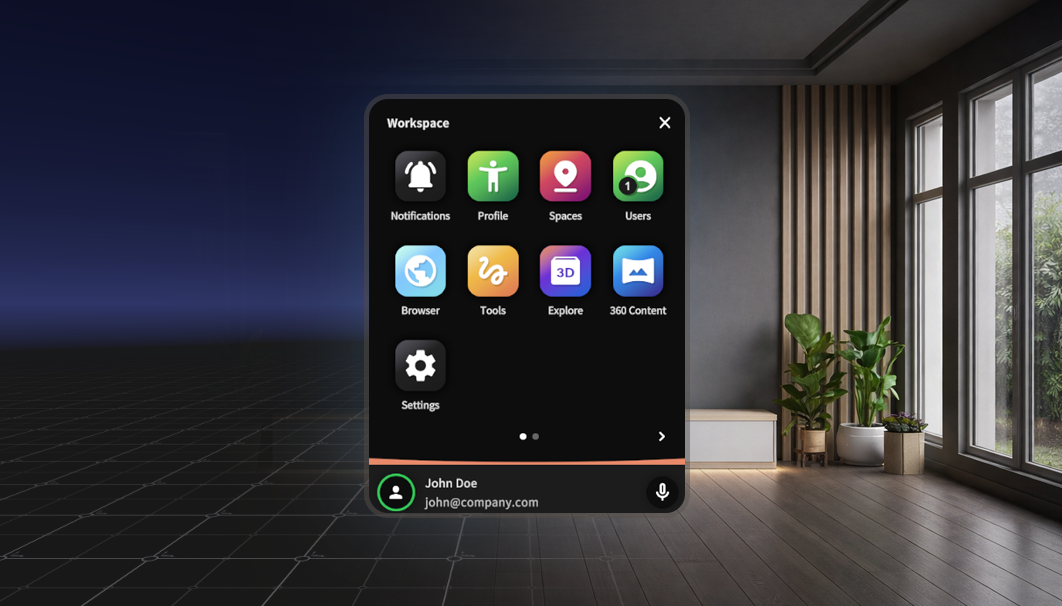
Select a project
Open the Explore app.
Do this by pointing at it with your hand and making a pinch gesture (bringing your thumb and index finger together). With a controller, point at the app and press the trigger under your index finger.
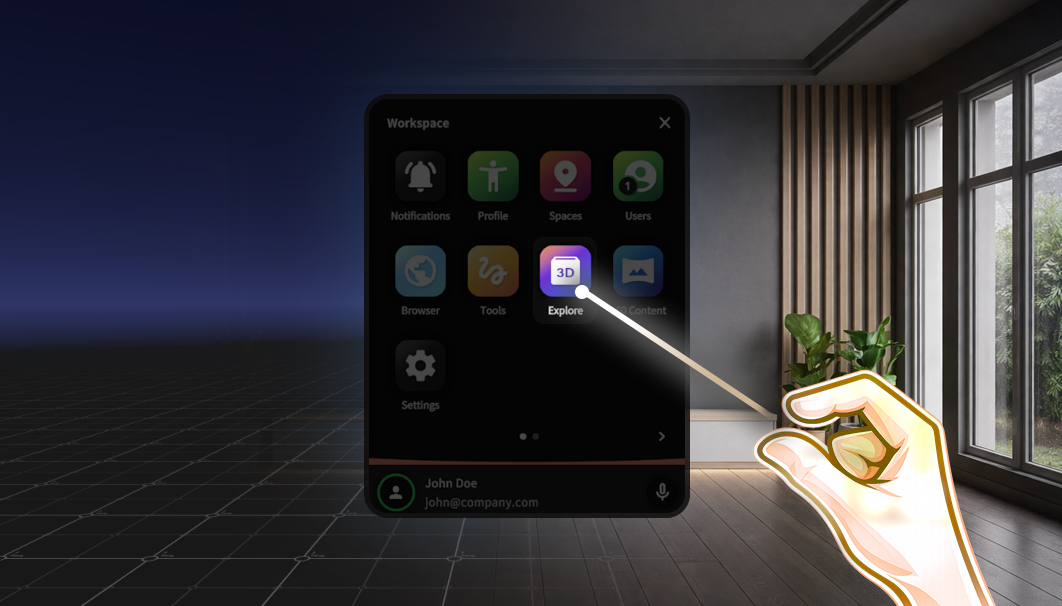
Use the same interaction to click Add Content in the next screen.
Clear Content first.Select file
Navigate to your project:
- Choose
PersonalorShared - Open your project folder
- Select the
.c2prjfile
Click Select.
The project loads
Your project will now load into the environment. Everyone in the virtual space will see the same scenario.
Are you getting an error? Or is something not working as expected?
Try the following steps first:
- Check your internet connection — a stable connection is essential
- Clear the content using the
Exploreapp and load it again - Check your workflow in Blender and export again
Calibration in Mixed Reality
Are you using this project in a Mixed Reality environment?
Then it’s important to calibrate your content in the space.
Without calibration, your content may appear shifted or incorrectly oriented.
During use, you may encounter this calibration object:
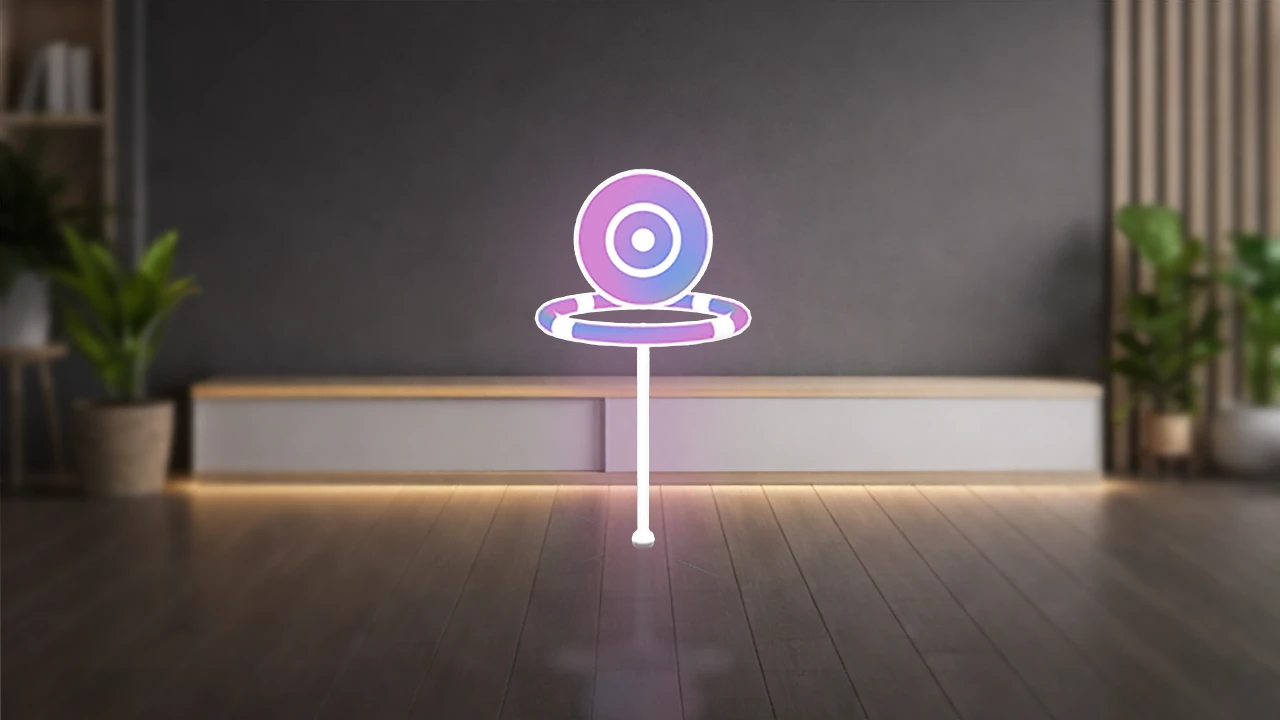
With this object, you define the position and orientation of your content in the space.
This ensures that:
- your content is positioned correctly in the real world
- multiple users see the same alignment
Want to learn how to perform calibration? Continue to the next step: