Load in VR
After uploading, you can open your project in the VR headset.
Start
Turn on the VR headset and open the Connec2 app.
You will enter the Metaspace, an empty virtual canvas where you can load your projects.
Depending on your settings, this will be a virtual or mixed reality environment.
Open the menu
Open the menu:
- Controller → press the
menu button(left) - Hand tracking → look at your left wrist and tap the button
- Windows → click the menu icon at the bottom left of your screen
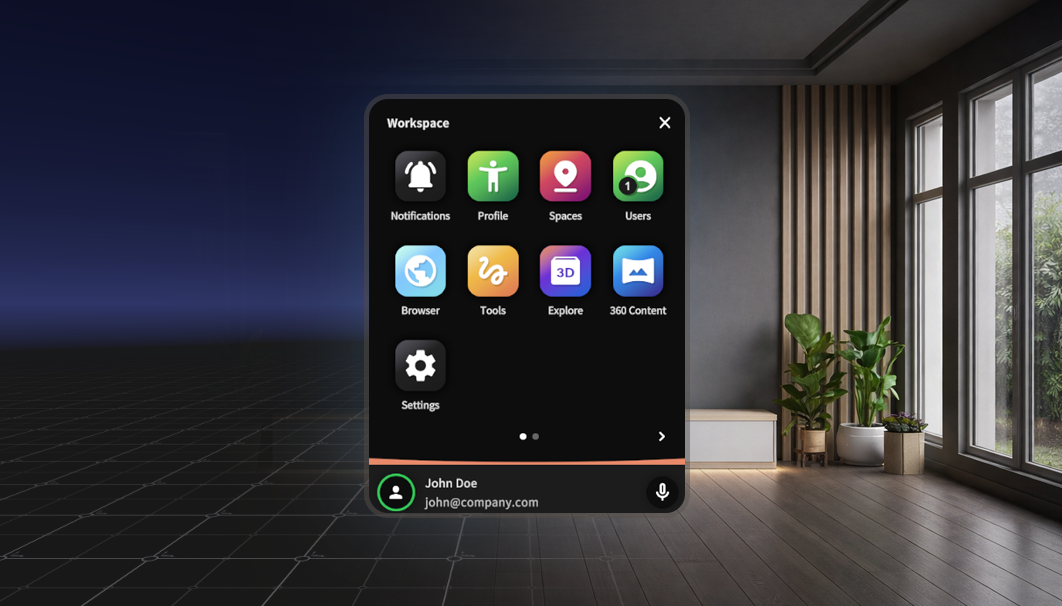
Select your project
Open the Explore app.
Do this by pointing at it with your hand and pinching your thumb and index finger together. With a controller, point at the app and press the trigger under your index finger.
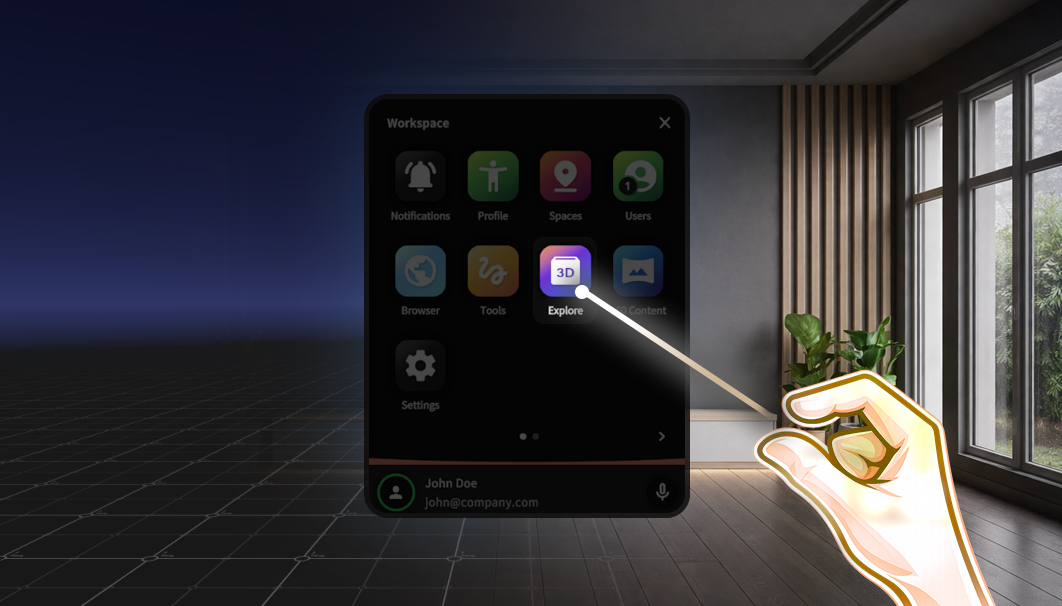
Click Add Content in the next screen using the same method.
Clear Content.Select file
Navigate to your project:
- Choose
PersonalorShared - Open your project folder
- Select the
.c2prjfile
Click Select.
Done
Your project will now load into the environment.
Everyone in the virtual space will see the same scenario.
Not working?
Are you getting an error? Or is something not working as expected?
Try the following steps:
- Check your internet connection — a stable connection is crucial
- Clear the content using the
Exploreapp and load it again - Check your workflow in Blender and export again