Network quality
For a good experience in Connec2, a stable internet connection is essential.
This means not only sufficient speed, but especially low latency and a stable connection.
To check this, you can run a speed test.
The test only measures your connection — other users may still experience issues.
How to test your connection
- Run a speed test on the same network as the device you use for Connec2
- Compare your results with the examples below
We recommend Ookla Speedtest:
https://www.speedtest.net/
For additional metrics such as jitter and packet loss, you can use the apps:
Examples
Good connection
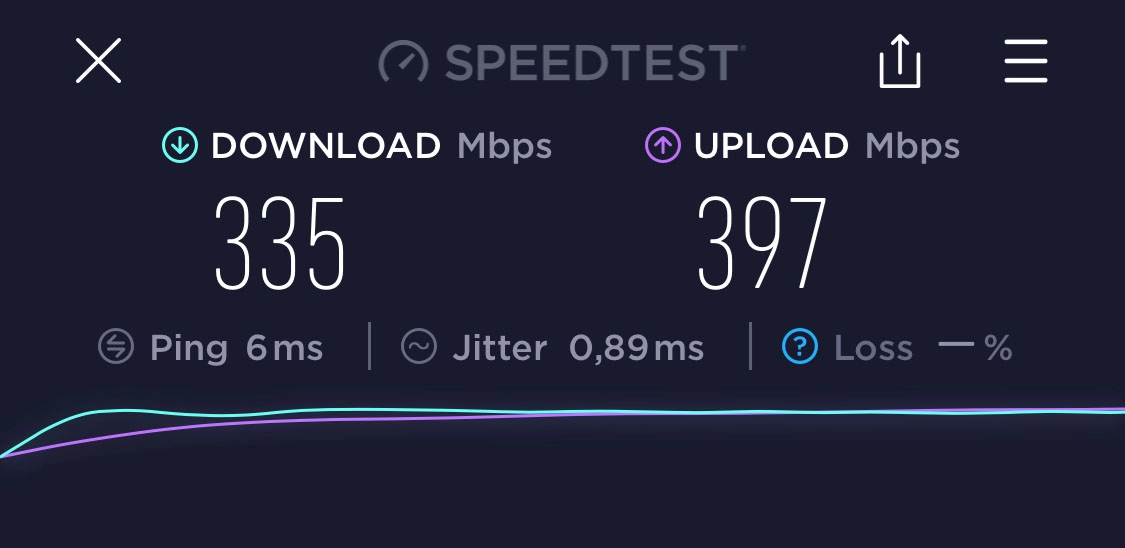
- High download and upload speeds
- Low latency
Suitable for multiple users and all Connec2 functionalities.
Limited connection
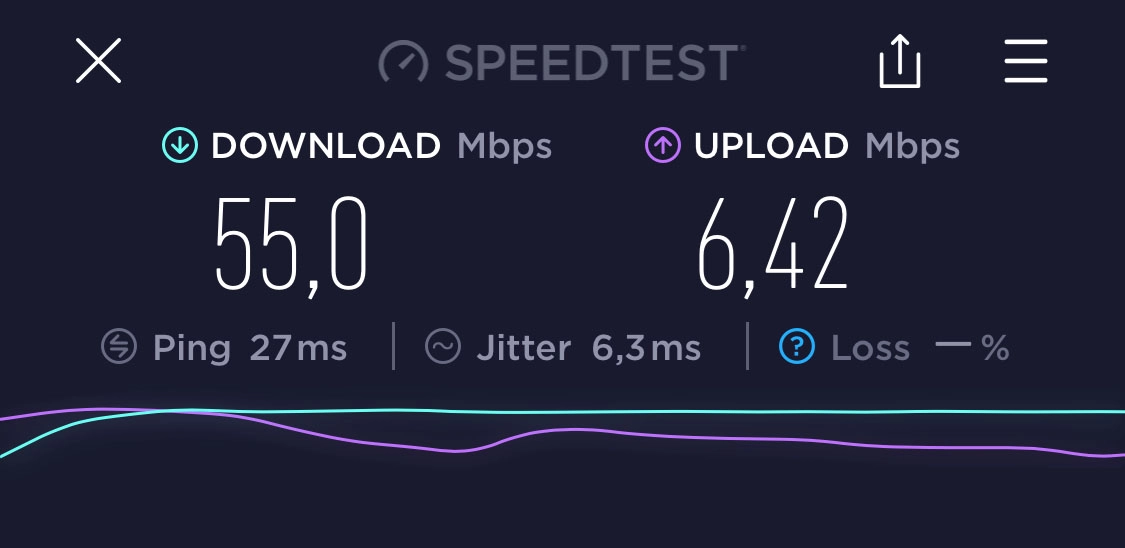
- Lower upload speed
- Higher latency
Less suitable for larger groups or intensive use (such as Remote Desktop).
What do the numbers mean?
Download — how fast you receive data (Mbps)
Recommended: 100 Mbps or higherUpload — how fast you send data (Mbps)
Recommended: 50 Mbps or higherPing (latency) — response time of your connection (ms)
Recommended: 10 ms or lowerJitter — variation in latency (ms)
Recommended: 1 ms or lowerPacket loss — lost data packets
Recommended: none
Important to know
- These values are guidelines, not strict requirements
- Simple meetings require less bandwidth than Remote Desktop
- Mbps ≠ MB/s
- 8 bits = 1 byte
Additional note
Mobile hotspots (such as phones or 4G/5G routers) are often less suitable as Wi-Fi access points.
Even if the connection seems stable, they may struggle with:
- Multiple devices at the same time
- Continuous data streams
This can lead to performance issues in Connec2.