Using the menu
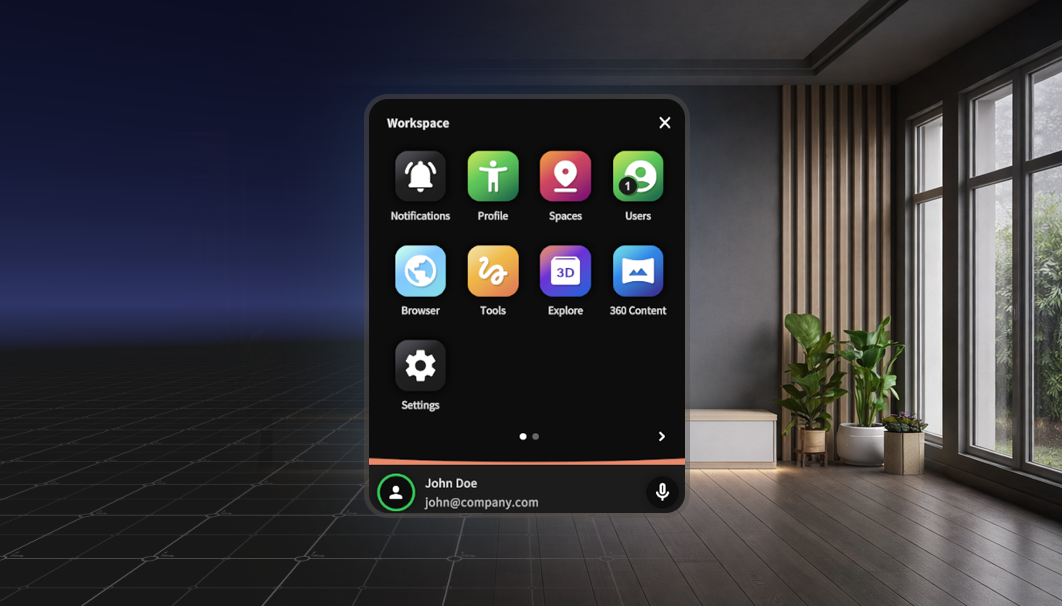
In the XR Client, you use the menu to open apps and access features.
The menu consists of two parts:
- App drawer → overview of all available apps
- Apps → the panels you open from the app drawer
Opening and closing the app drawer
You can open and close (toggle) the app drawer in the following ways:
In XR (controller):
Press the menu button (hamburger icon) on your left controllerIn XR (hand tracking):
Look at your left forearm and press the button with your right index fingerOn Windows:
Click the menu icon in the bottom-left of the screen
The app drawer will appear. Close it the same way you opened it.
In some cases, opening the menu may also be restricted.
Interacting with the menu
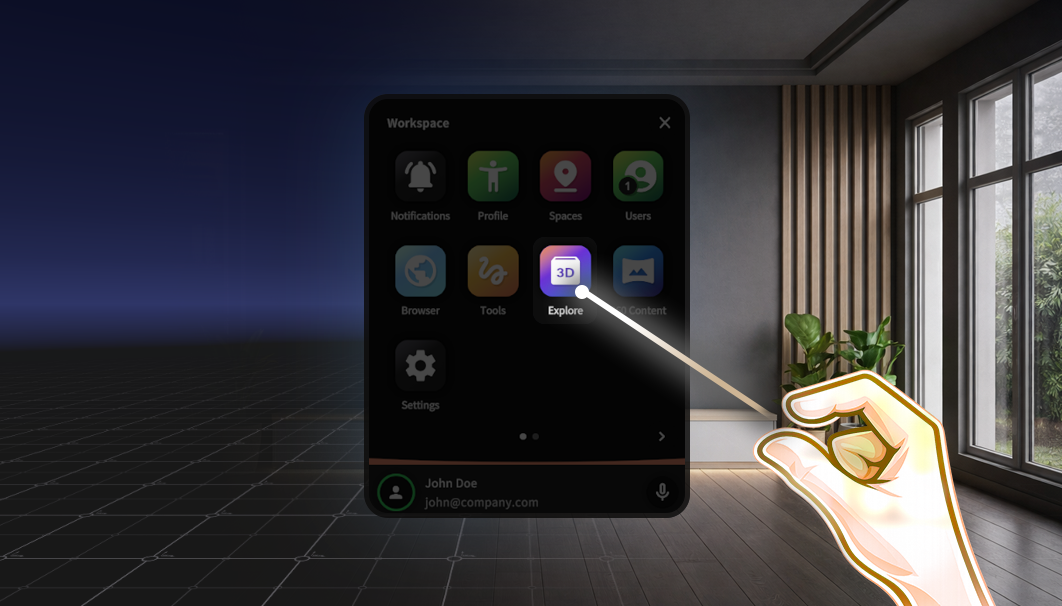
You control the menu by pointing and selecting.
When you point at the menu, a line appears from your hand or controller.
This line indicates what you are interacting with.
With hand tracking:
Point at a button and make a pinch gesture
(bringing your thumb and index finger together)With controllers:
Point at a button and use the trigger under your index fingerOn Windows:
Move your cursor over the menu and click to select
Opening apps
The app drawer shows a grid of available apps.
In XR:
Point at an app and select it using the trigger (controller)
or a pinch (hand tracking)On Windows:
Click an app with your mouse
Some accounts have multiple pages of apps. In that case, you can swipe horizontally to switch between pages.
Using and closing apps
When you open an app, it appears as a panel in the environment.
- Each app has its own function
- You can interact with it within the same space
Close an app by clicking the close button (X) in the top-right corner.