VR headset
On a Meta Quest headset, you use the Connec2 app to access the XR Client.
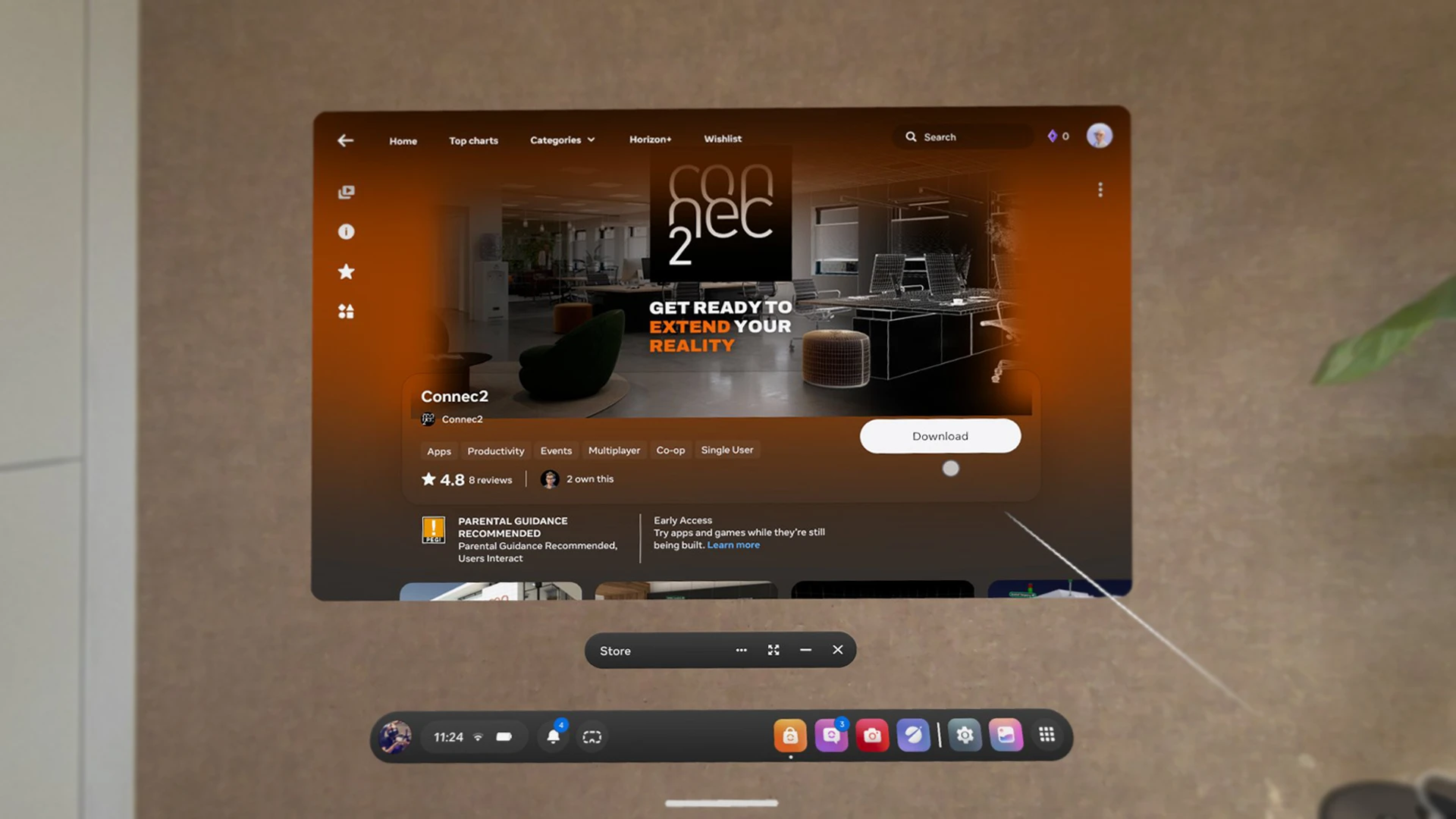
Installing via the Meta Quest App Store
Follow the steps below to install the app:
- Turn on your VR headset
- Make sure your headset is connected to Wi-Fi
- Open the App Store
- Search for
Connec2 - Select the app and click Download or Install
After installation, you can open the app from your library.
Managed devices (optional)
Are you using headsets within an organization?
In that case, the app could be deployed centrally via a managed solution (such as Meta for Work), so you don’t need to install it manually.
Refer to Meta’s official documentation for this approach:
https://work.meta.com/help/929282808591864
Updates
The app is automatically kept up to date via the Meta Quest App Store.
In some cases, you may also need to update your headset to the latest version of the operating system.
Tip
Has your headset been turned off for a while?
Turn it on well before use and make sure it’s connected to Wi-Fi. This gives the device time to automatically install any updates.