Load content
In the XR Client, you load content via the Explore app.
This allows you to open projects and models stored in your workspace.
Open the Explore app
Open the menu:
- Controller → press the menu button (left)
- Hand tracking → look at your left wrist and tap the button
- Windows → click the menu icon in the bottom-left
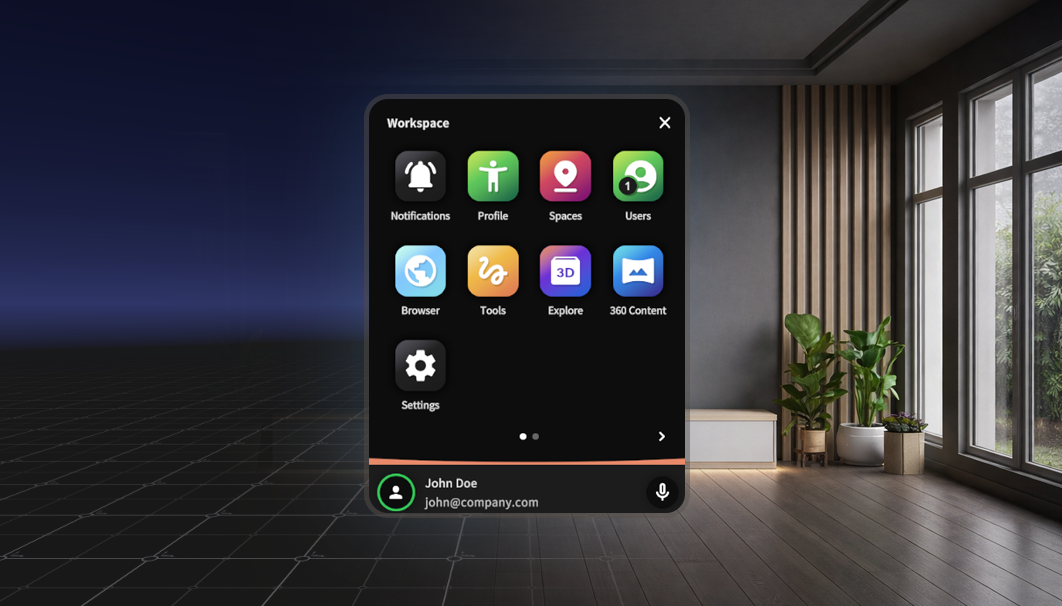
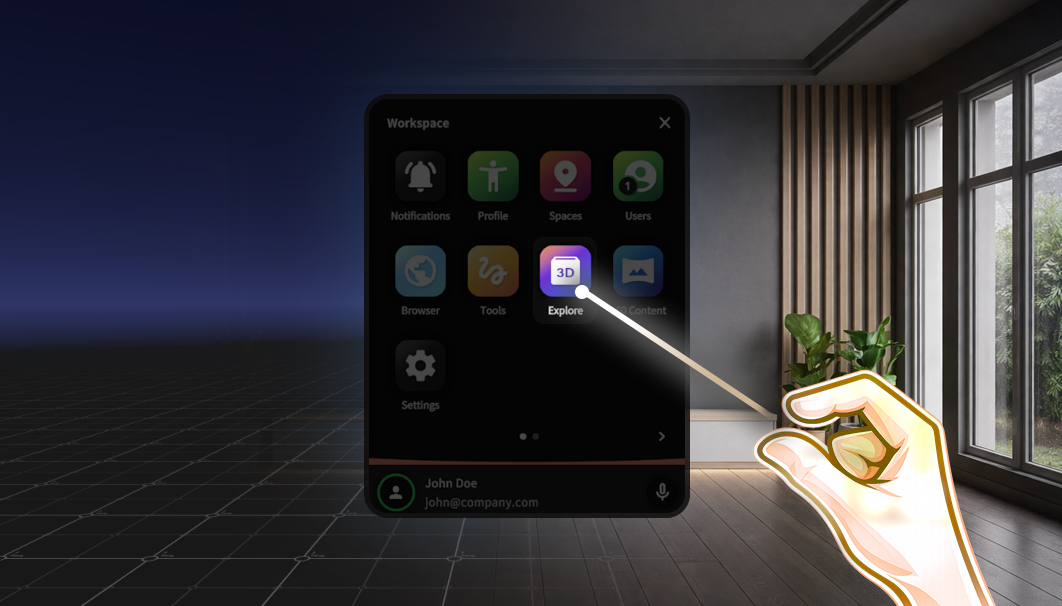
Then select the Explore app.
Types of content
Within the Explore app, you can load different types of content:
.c2prj→ complete scenarios (created with the XR Toolkit).glb→ individual 3D models
Key difference
- You can load one
.c2prjat a time - You can load multiple
.glbmodels simultaneously - You can combine a
.c2prjwith additional.glbmodels
This allows you to extend a scenario with extra objects.
Loading content
In the Explore app, you can add content to your environment.
Step 1 — Start with an empty environment
Click Clear Content if content is already active.
Step 2 — Add content
Click Add Content.
Step 3 — Select your content
Navigate to your files:
- Choose
PersonalorShared - Open the correct folder
- Select a
.c2prjor.glbfile
Click Select.
Managing content in Explore
When you have loaded multiple files, they will appear in the Explore app.
Here you can:
- See which content is active
- Combine multiple
.glbmodels - Remove or replace content
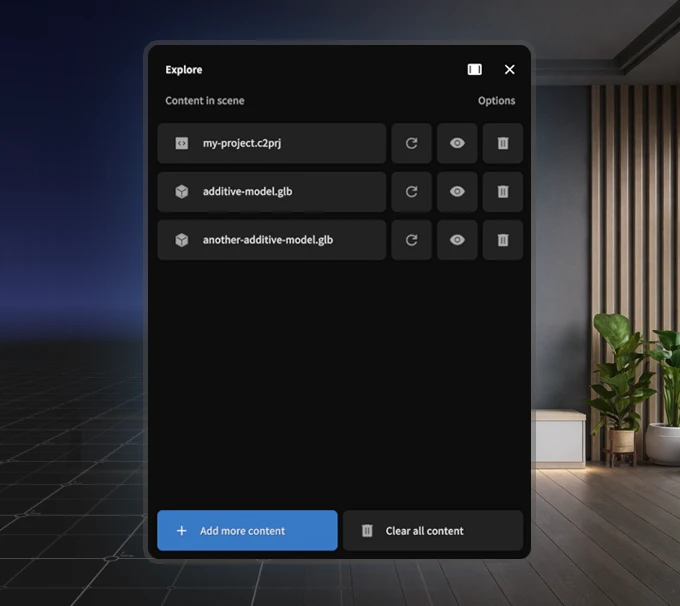
.c2prj forms the base of your scenario. Additional .glb models are added as separate objects.Content actions
For each loaded item, you will see three buttons in the Explore interface:
Reload
→ Reloads this piece of contentShow / hide
→ Toggles the object on or off in the sceneRemove
→ Removes the object from the scene
This means:
- If you hide an object, it will also be hidden for other users
- If you remove an object, it will disappear for everyone
You can use this, for example, to toggle additional models on or off—similar to a simple configurator.
What happens next?
- Your project or model is loaded into the environment
.glbmodels are added as individual objects- A
.c2prjdefines the behavior and logic of a scenario
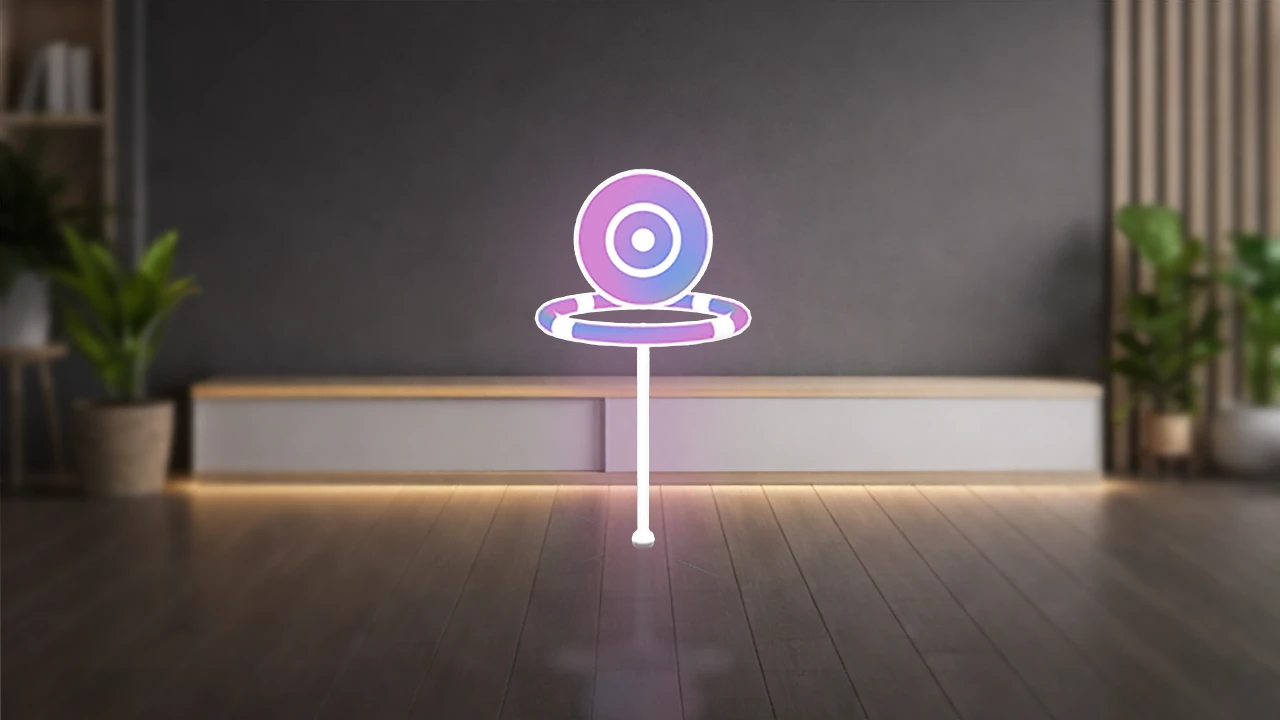
Mixed Reality? Don’t forget to calibrate!
Are you using the XR Client in a Mixed Reality environment?
Then it’s important to calibrate your content in the space so it is positioned correctly.
Tips
- Use Shared content when working with multiple users
- Ensure you have a stable internet connection
- Something not working? Try Clear Content and reload