Sign in
To use the XR Client, sign in with your Connec2 account.
The process is slightly different in VR compared to Windows.
Signing in on VR (Meta Quest)
When you launch the Connec2 app, you will see a login panel.
Entering your Workspace ID
- Select the input field by pointing at it
- With your hand: perform a pinch (thumb + index finger)
- With a controller: use the trigger
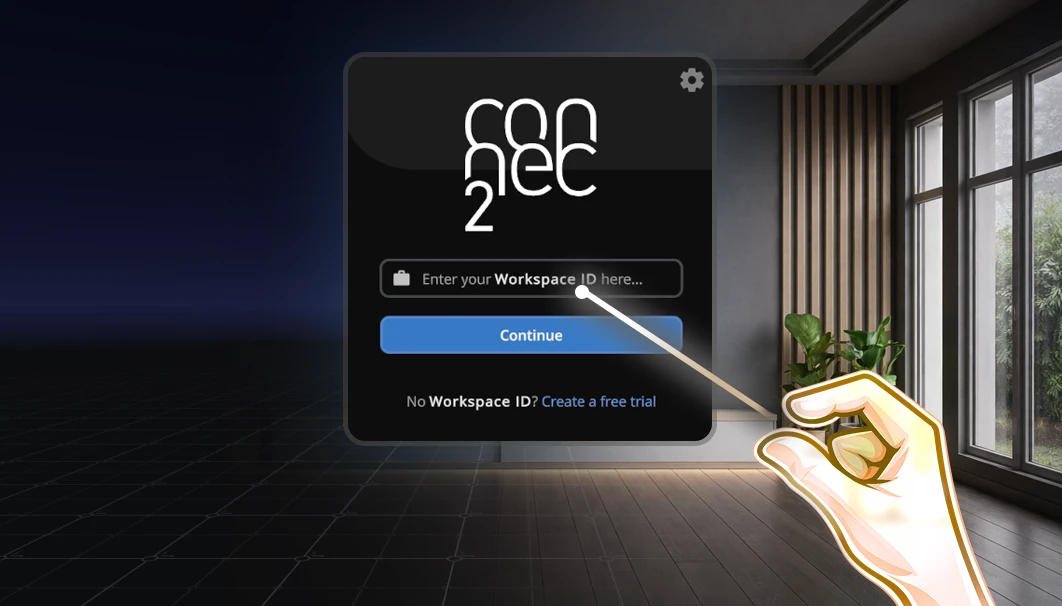
- A virtual keyboard will appear below the panel
- Use the virtual keyboard to enter your Workspace ID
- Confirm using the keyboard button and click Continue
Signing in with your account
- Enter your username (email) and password
- Use the same method as when entering the Workspace ID
- Confirm your details
You will now be automatically signed in to the XR Client.
The next time you start the app, you won’t need to do this again.
Signing in on Windows
Want to use the XR Client on Windows?
Then you sign in via Connec2 Uplink.
See the Uplink documentation:
You are signed in and ready to use the XR Client.
Last updated on