Launch XR Client
With Connec2 Uplink, you can launch the XR Client on Windows and join the virtual environment without a VR headset.
This is useful if you don’t have a headset available or want someone to view along with you.
Start Connec2
After signing in to Uplink, you will see an overview with several options.
- Click “Start Connec2”
- Click “Click here to start”
Depending on your situation, you may see the following buttons:
- Install → Connec2 can be installed
- Update → Connec2 can be updated
- Start → Connec2 can be launched directly
Installation and launch
Step 1 — Install or update
Click “Click here to install” or “Click here to update”.
This will download and install the XR Client.

Step 2 — Follow installation
During installation, you will see a progress bar.
Wait until the installation is fully completed.
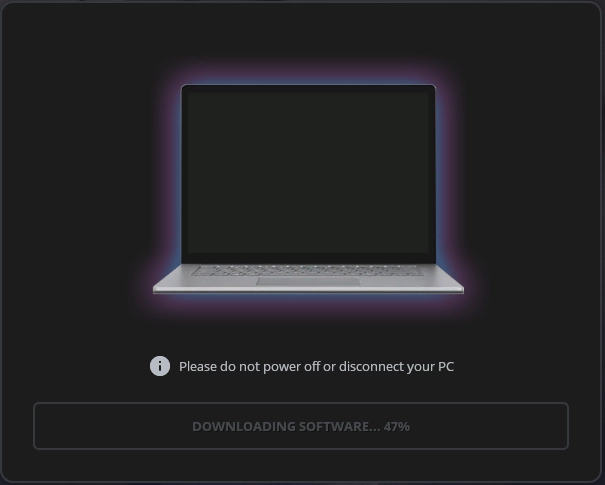
Step 3 — Launch XR Client
Click “Start Connec2” to open the XR Client.
After launching, you will be automatically signed in and enter the virtual environment.
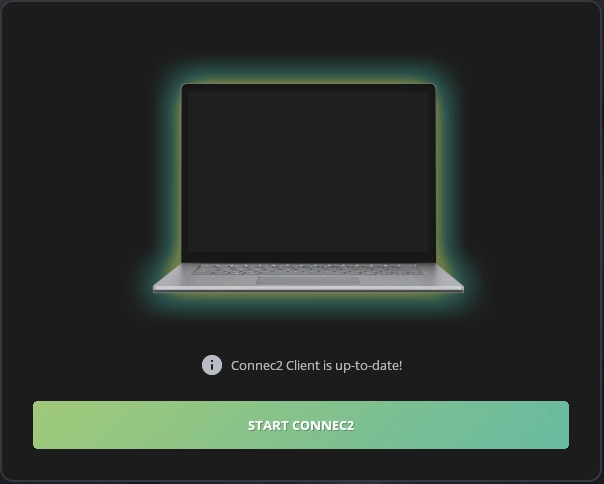
The XR Client is launched and you are ready to join the virtual environment.
Last updated on