Remote desktop
With Remote Desktop, you can share your Windows desktop in the XR Client.
Your screen becomes visible on the Smart Screens in the virtual environment and can also be controlled there.
Step 1 — Enable Remote Desktop
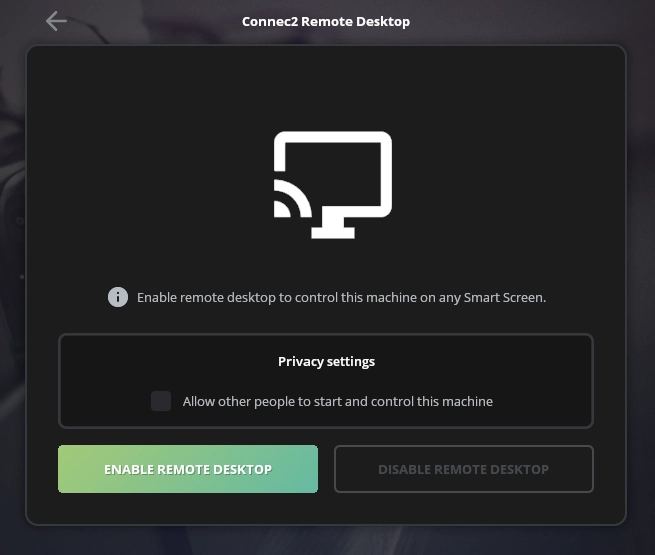
Click “Enable Remote Desktop” to share your desktop.
Step 2 — Set access permissions
By default, only you can control your desktop.
Want to collaborate?
Enable the option that allows other users to request access.
Note: only one user at a time can control your desktop.

Step 3 — Recognize an active session
When Remote Desktop is active, you will see a red border around your screen.
You can minimize Uplink while Remote Desktop remains active.

Step 4 — Control via Smart Screens
Your desktop appears on the Smart Screens in the virtual environment.
From there, you can control your desktop.
