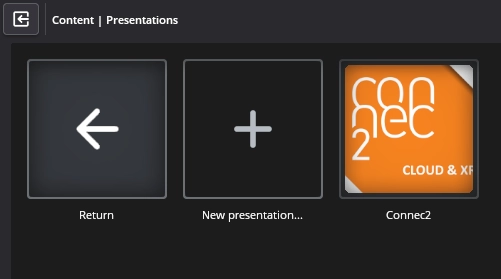
Presentations
With Connec2 Uplink, you can add presentations to your workspace.
These presentations can then be displayed on the Smart Screens in the XR Client.
You can find this functionality in Uplink under “Manage Content”.
Step 1 — Export slides
Export your presentation from PowerPoint as images.
Go to File → Export → Change File Type and choose PNG or JPG.
A folder will be created containing all slides as separate images.

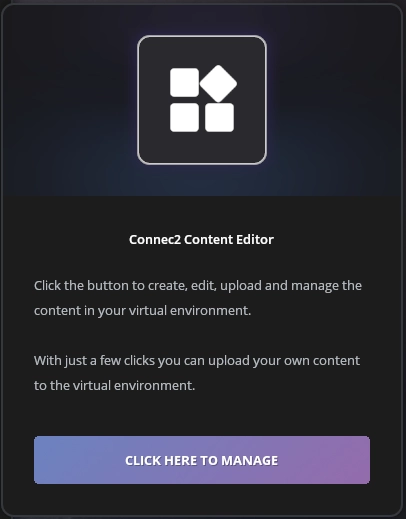
Step 2 — Open Content Editor
Launch Connec2 Uplink and open the Content Editor via “Click here to manage”.
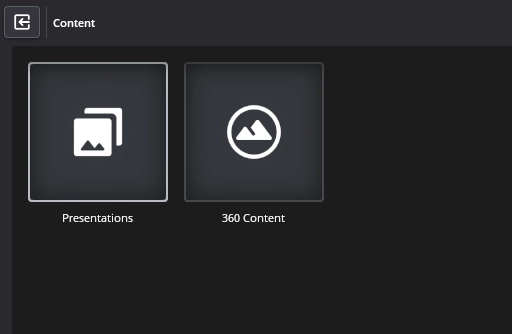
Step 3 — Open presentations
Go to Presentations.
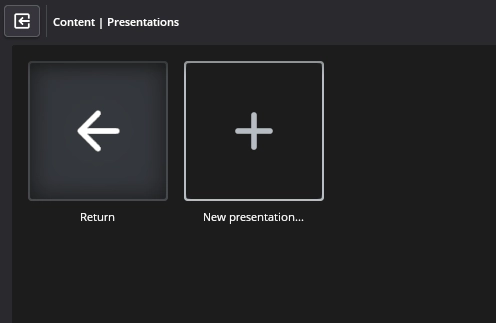
Step 4 — Create a new presentation
Click “New presentation…” and give your presentation a name.
Step 5 — Add slides
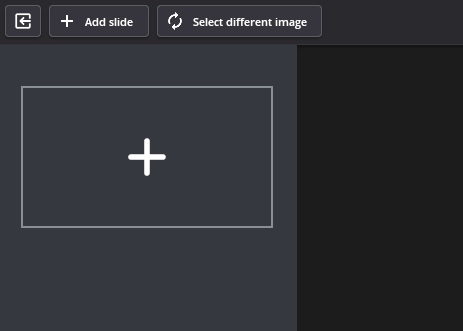
Click the + icon and select the images of your slides.
Step 6 — Arrange slides (optional)
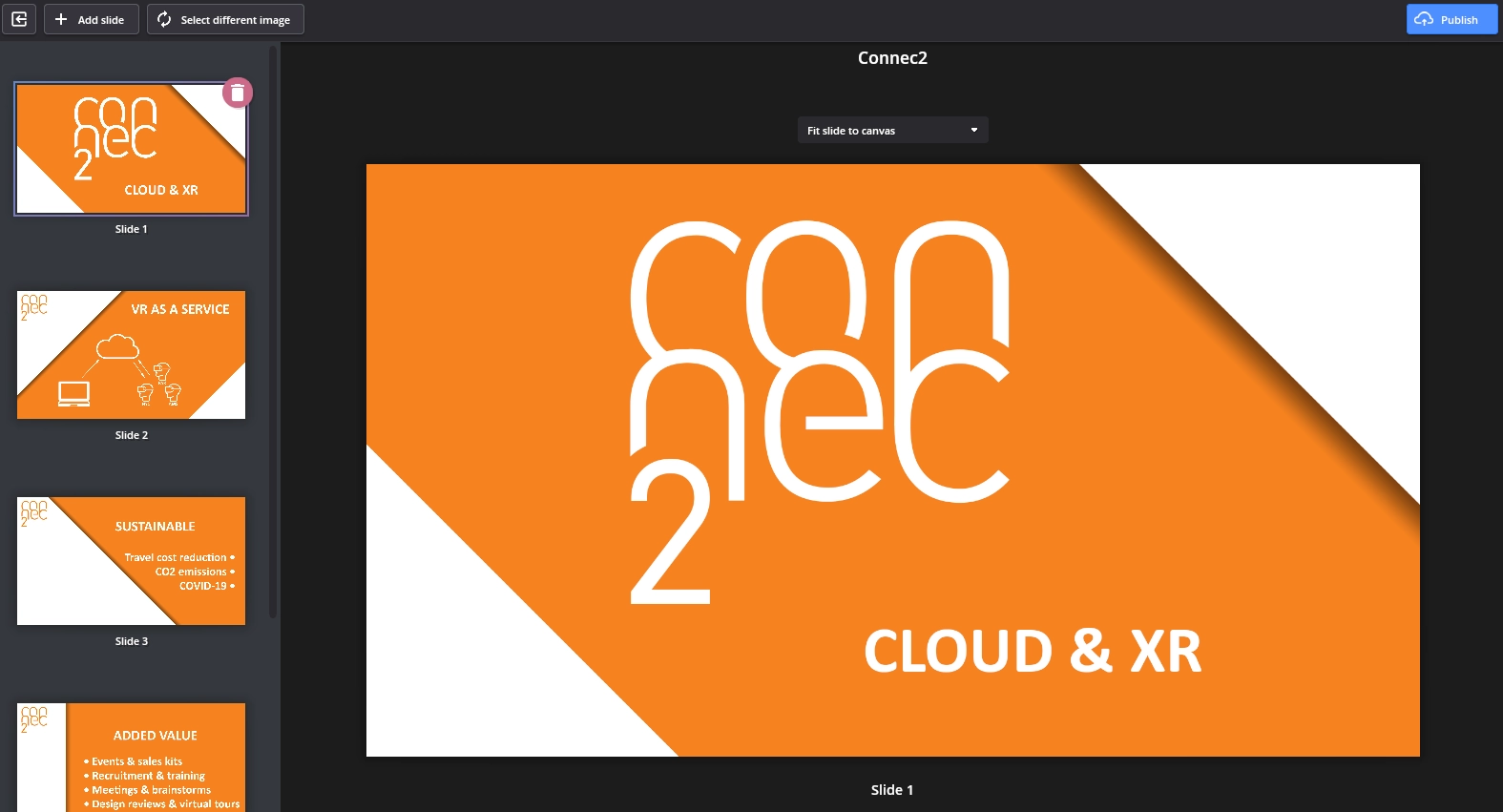
Drag slides to change their order.
Step 7 — Publish
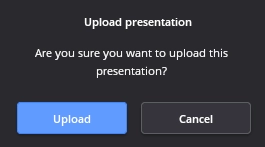
Click “Publish” and then “Upload”.
Step 8 — Done
Your presentation is now available in your workspace and can be used on Smart Screens.