Start Connec2 Client
With the Windows 10/11 Connec2 Client, you can join the Virtual Workspace without needing a VR headset.
This is helpful when you forget your headset or want to invite a guest who doesn’t own one.
Joining from a flat screen doesn’t give the full immersive experience—but your voice and presence still count!
Step 1 — Download and install
Press the orange “Click here to update” button to download and install the latest version of the Connec2 Client.

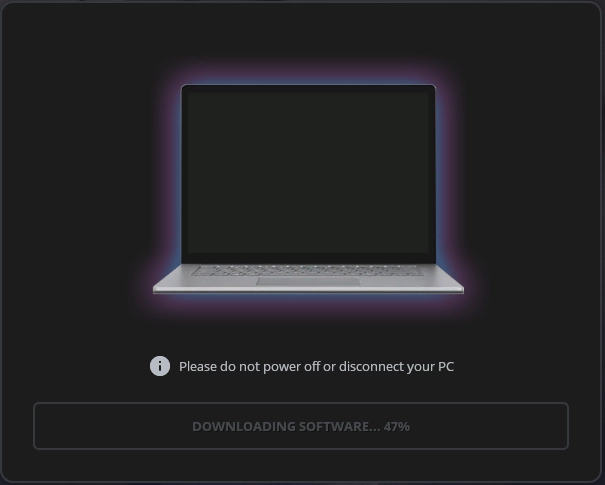
Step 2 — Monitor installation progress
You can follow the installation through the progress bar shown on screen.
Step 3 — Launch Connec2 Client
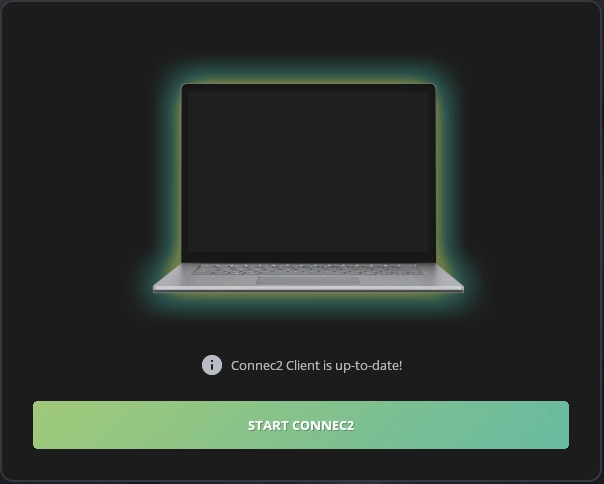
When installation completes, press the green “Start Connec2” button to launch the Windows 10/11 Connec2 Client.
Follow the onscreen instructions that appear after automatic login.
Take a look at the Tutorials section of the Platform Guide:
Connec2 Client › Virtual Workspace
for a quick tour of the Virtual Workspace you’re about to explore!