Customize your avatar
With the Connec2 Avatar menu, you can link the avatar you’ve created to your account.
If you haven’t created one yet, see the Avatar › Create your avatar tutorial to get started.
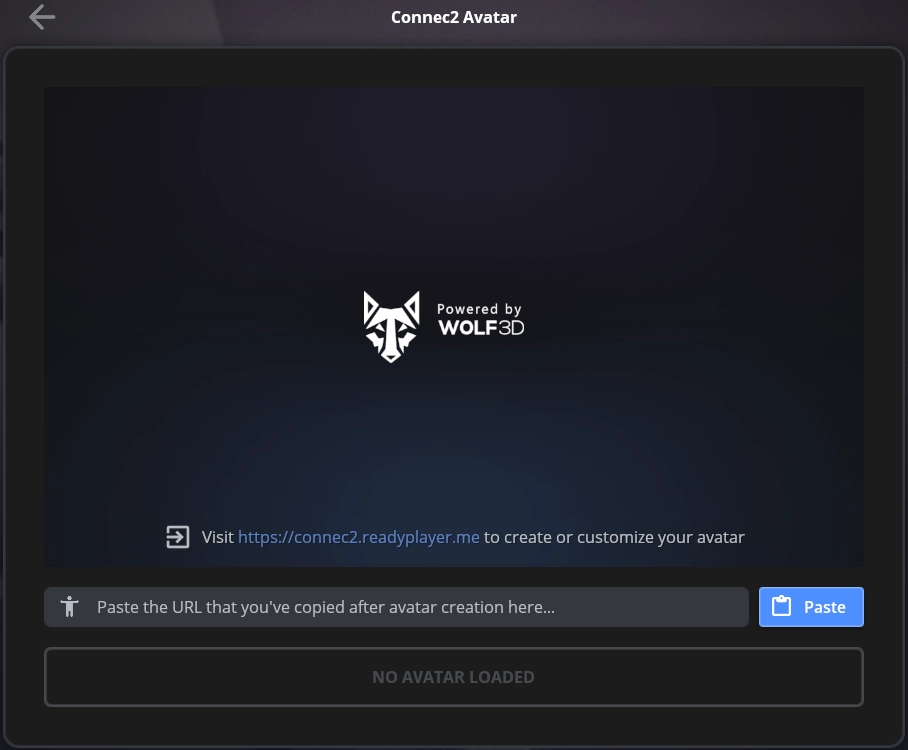
Step 1 — Paste your avatar URL
Copy your unique avatar URL to your clipboard.
It looks something like this: https://d1a370nemizbjq.cloudfront.net/b85cd562-f78f-48aa-978f-64497c265b20.glb
Click the blue “Paste” button — your avatar should now become visible!
Step 2 — Save your avatar
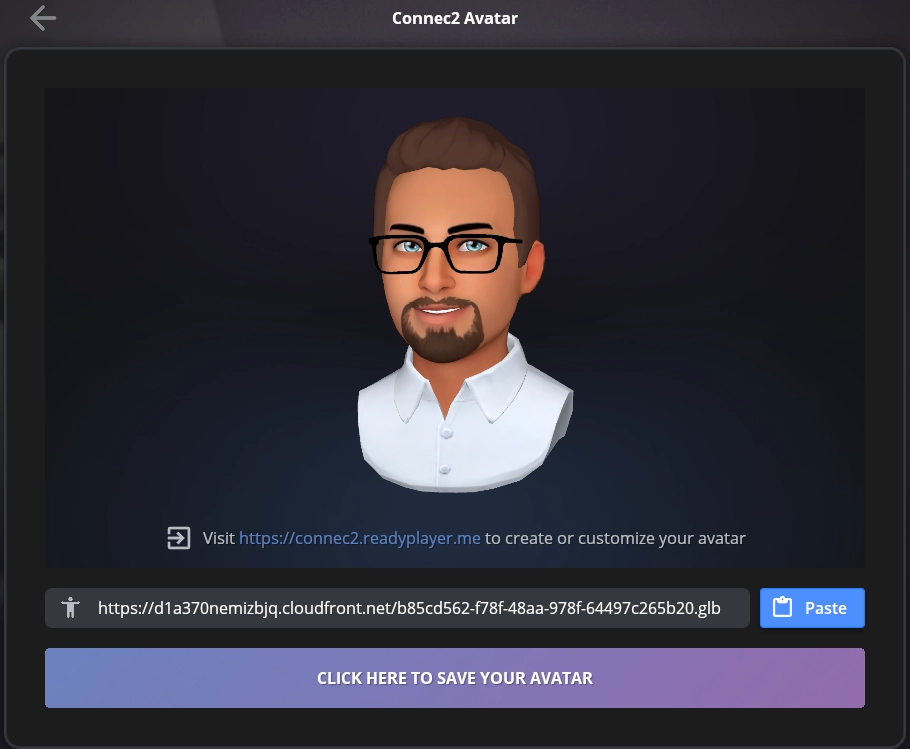
Click the purple “Click here to save your avatar” button.
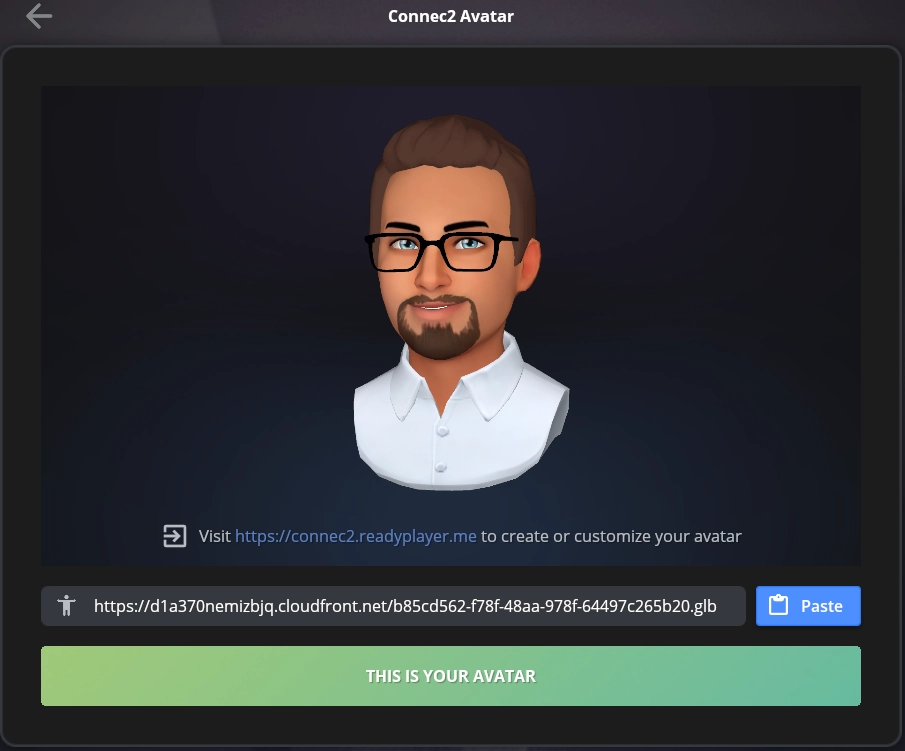
Once saved, it will change to a green “This is your avatar” confirmation button.
Step 3 — Confirm your avatar is active
That’s it! 🎉
Your personalized avatar helps others recognize you more easily and creates a more engaging experience during meetings.
Step 4 — Optional: remove your avatar
If you’re not happy with your avatar, scroll to the bottom and click “Remove your avatar.”