Network Speedtest
Running a speedtest helps you gauge whether your connection is stable enough for Connec2.
For best results—especially if you use features like Remote Desktop—you’ll want low latency and sufficient bandwidth.
While speedtests aren’t the ultimate benchmark, they are a good indicator of likely connection quality.
Note: a speedtest checks your end of the connection; other users with unstable links may still experience issues.
How to test
- Perform a speedtest on the same Wi-Fi network your (standalone) VR headset will use.
- Compare your result to the examples below to judge stability.
We recommend Ookla Speedtest. For more detailed metrics (including Jitter and Packet loss), use their native apps for
Windows, Mac, Android, or iOS.
Examples
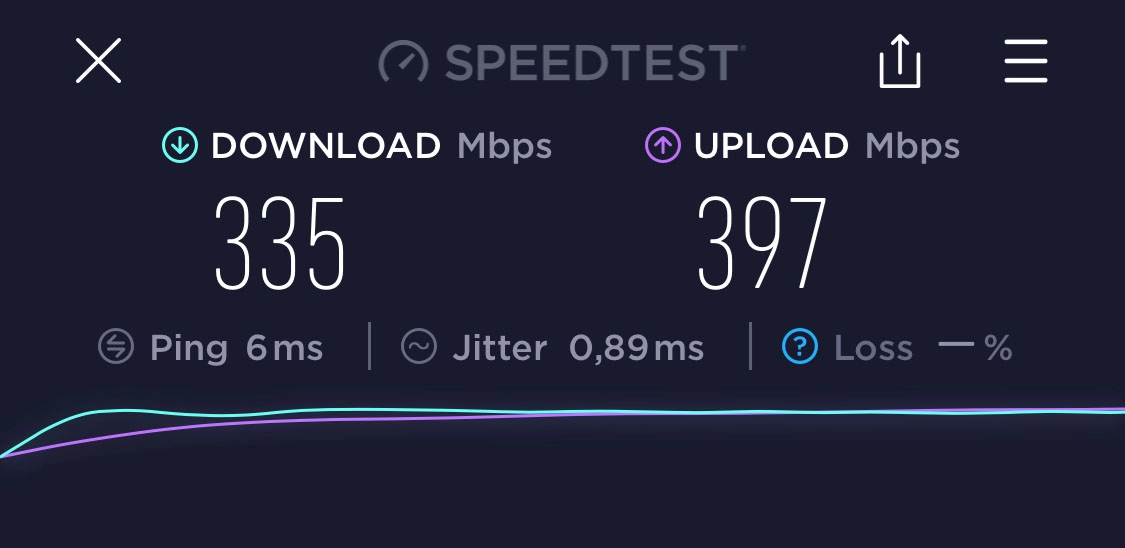
Example: Wi-Fi broadband
- High bandwidth (download / upload)
- Low latency (ping / jitter)
Great experience for multiple connected users and all Connec2 features.
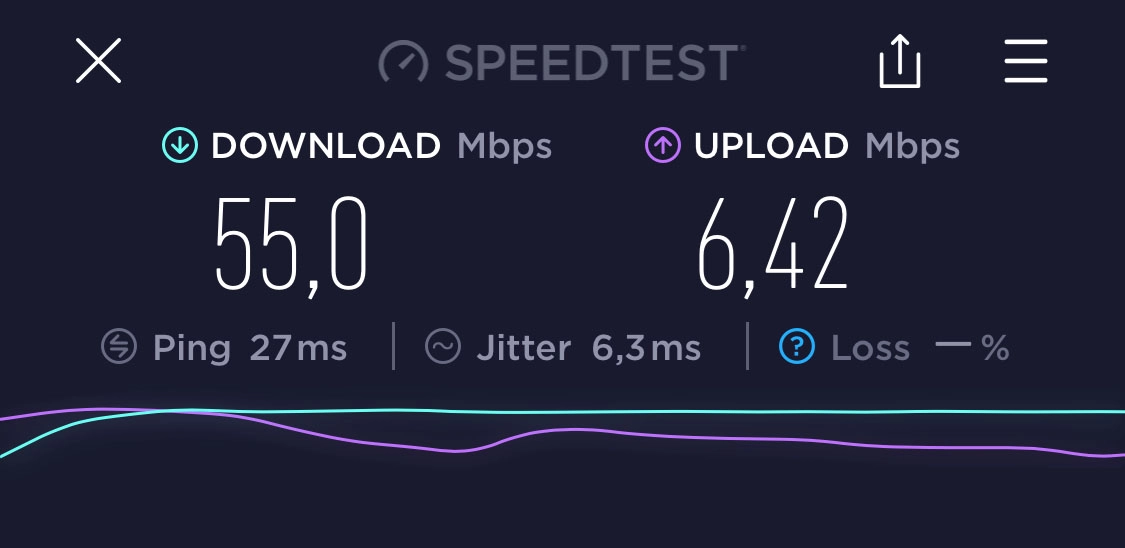
Example: 4G hotspot
- Lower upload bandwidth
- Medium latency (ping / jitter)
Not suitable for larger groups or high-demand streams (e.g., Remote Desktop).
Information and images courtesy of Ookla.
What the numbers mean (and recommended targets)
Download — how fast you receive data (Mbps).
Recommended: 100 Mbps or higher.Upload — how fast you send data (Mbps).
Recommended: 50 Mbps or higher.Ping (latency) — reaction time of your connection (ms; lower is better).
Recommended: 10 ms or lower.Jitter — variability in latency over time (ms; lower is better).
Recommended: 1 ms or lower.Packet loss — percentage of lost/partial packets.
Recommended: none.Mbps — megabits per second (speed). There are 8 bits in a byte.
MB/s, kB/s — megabytes/kilobytes per second (bytes; often used for file sizes).
These values are guidelines, not strict requirements.
A small voice meeting needs far less bandwidth than streaming a Remote Desktop to a group.
Notes
- Many mobile hotspots (phones, 4G/5G MiFi routers) are weaker Wi-Fi access points than dedicated routers.
Even if the mobile link is stable, the hotspot device may struggle to distribute data to multiple devices without performance drops.