Create your avatar
To create or customize your avatar, go to our online avatar creator, powered by our partner Wolf3D:
👉 https://connec2.readyplayer.me
In order to link the avatar to your account, you will need Connec2 Uplink.
If you haven’t installed it yet, see:
👉 Uplink for Windows 10/11 (MSIX Installer)
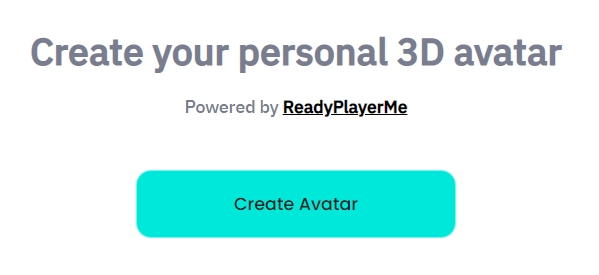
Step 1 — Start the avatar creator
Click the “Create Avatar” button.
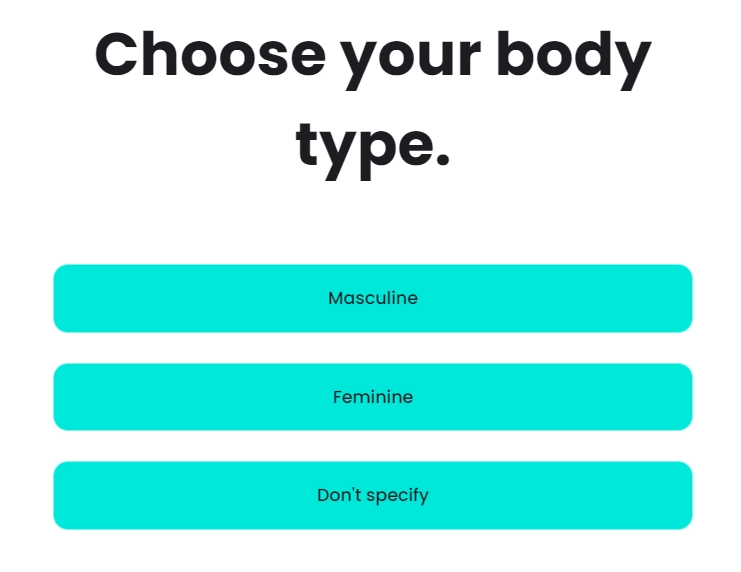
Step 2 — Select a body type
Choose your preferred body type to continue.
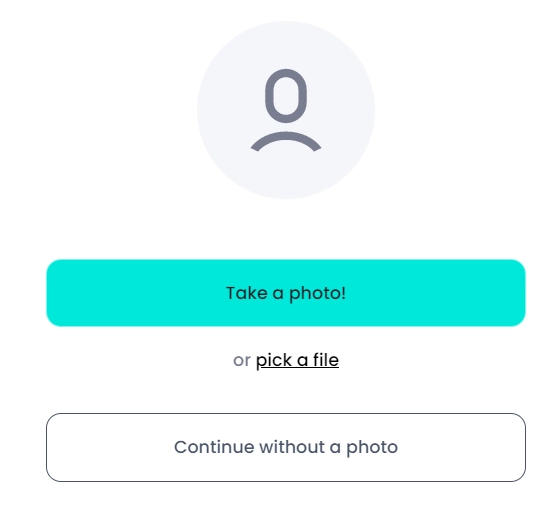
Step 3 — Choose how to create your avatar
Select whether you want to generate an avatar using a photo or create one manually.
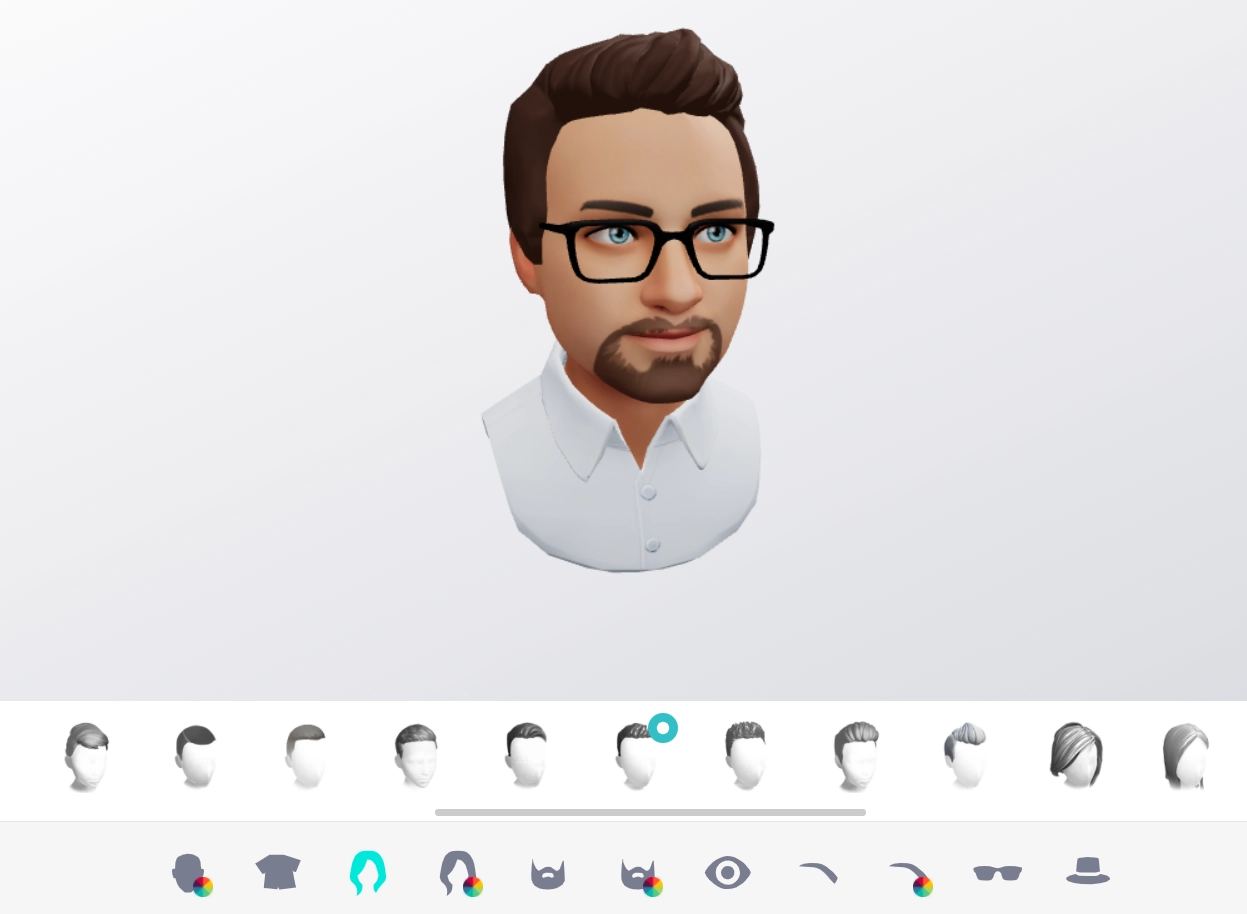
Step 4 — Customize your avatar
Use the toolbar at the bottom to customize your avatar’s appearance, clothing, and style.
Step 5 — Proceed when satisfied
When you’re happy with your avatar, click the “Next” button.
Step 6 — Continue without signup
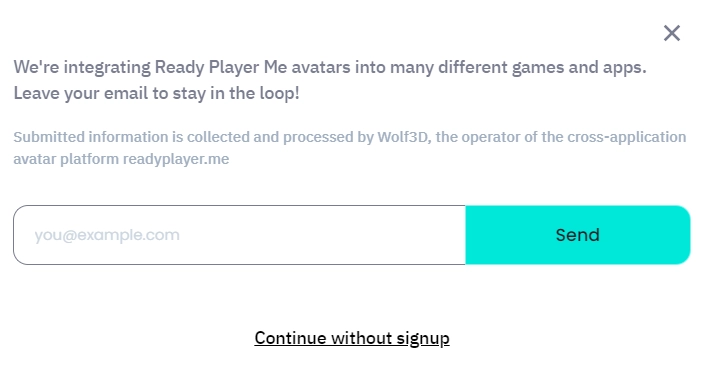
In the pop-up, select “Continue without signup”.
Step 7 — Copy your avatar URL
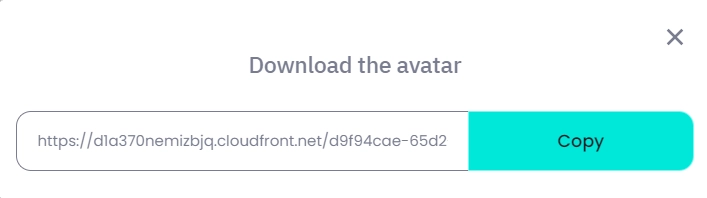
You’ll see a unique avatar URL (for example,https://d1a370nemizbjq.cloudfront.net/xxxxx.glb).
Click “Copy” to copy it to your clipboard.
Step 8 — Link your avatar to Connec2
You can now link the avatar to your Connec2 account using Connec2 Uplink.
See: Customize your avatar
Note:
- When you revisit the avatar creator on the same computer, any changes you make will automatically update your avatar in Connec2.
- If you want to create multiple avatars for different people on the same computer, you must restart your browser in incognito mode for each new avatar. Otherwise, you’ll overwrite the previous one.