Change avatar name
Because your avatar’s name is part of your account profile information, you can change it directly through the Connec2 back-end.
Step 1 — Go to the Connec2 login page
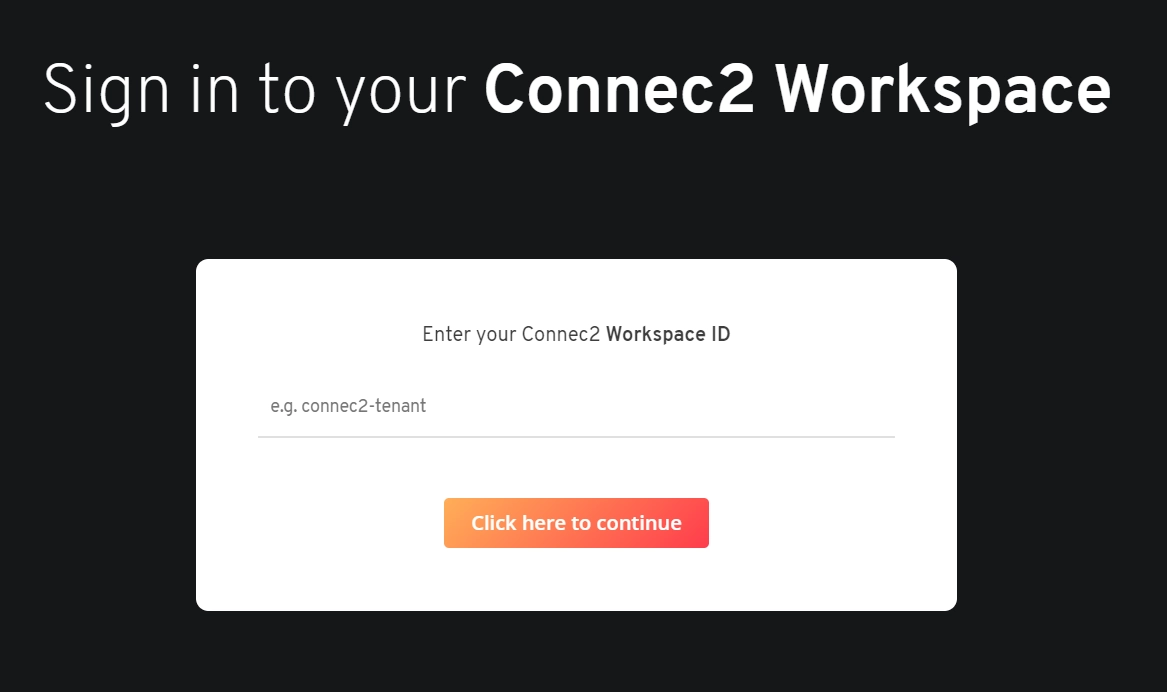
Navigate to https://connec2.app/en/login and enter your Workspace ID to continue.
Step 2 — Sign in with your account
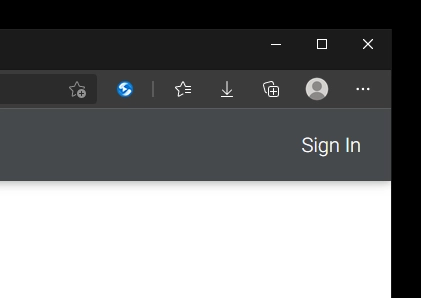
Click Sign In (top right) and log in using your Connec2 Account credentials.
Step 3 — Open your profile
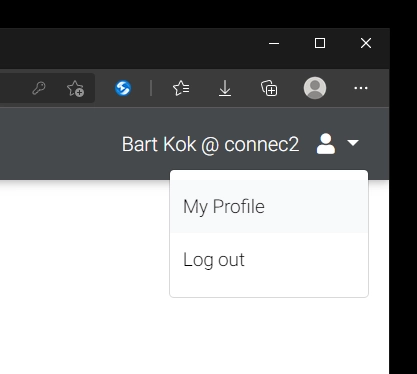
Once logged in, click your username in the top-right corner and select My Profile.
Step 4 — Edit Basic Information
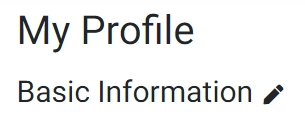
In the My Profile page, click the pencil icon next to Basic Information.
Step 5 — Rename your avatar
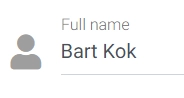
Update your avatar’s name in the Full name field.
Note: Don’t modify any of the other fields unless instructed.
Step 6 — Save changes
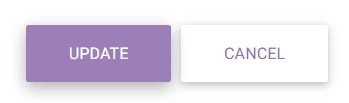
Click Update to save your changes.
Note:
When you get close to another avatar in the Virtual Workspace, their display will also show the information listed under Organization.
To edit this field, click the pencil icon next to Additional Information.