Connec2 Client
Client for Oculus Quest (App Lab)
We’re officially available on App Lab – this is the easiest way to install Connec2 on your consumer Oculus Quest.
With App Lab you will also be able to receive over-the-air updates!
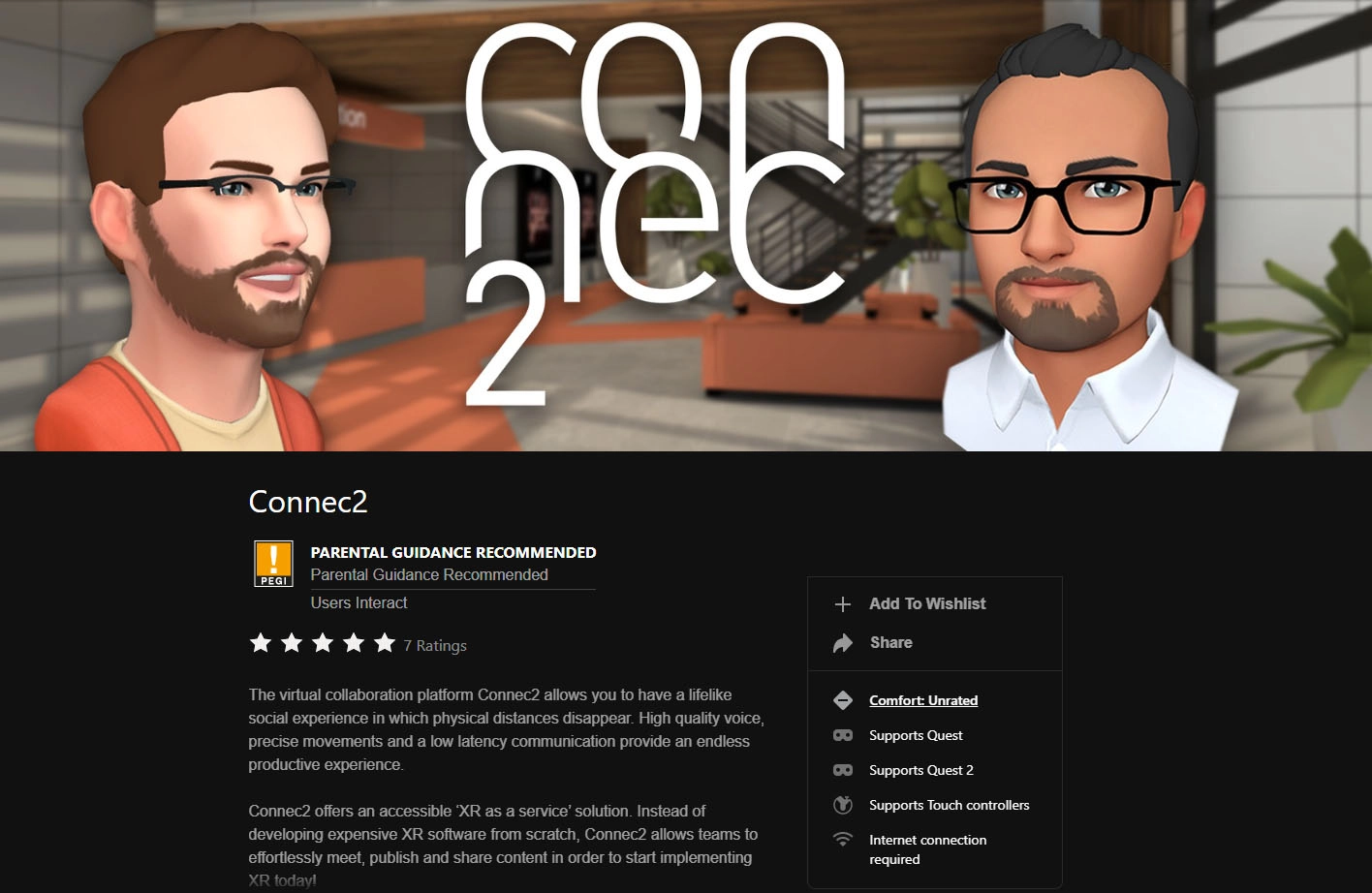
- Go to the following URL: https://www.oculus.com/experiences/quest/3581490358552901/
- You should now see our product page on App Lab (see image above).
- After clicking on the pop-up, look for a blue ‘buy’ button and purchase our free app.
Note: you’ll need to log in with your Oculus account (often your Facebook account).
- Put on your Oculus Quest with the associated Oculus account; our app should now be listed in your App Library — click it to install Connec2.
- On first launch, you’ll see 3 login fields: use the corresponding Connec2 credentials provided by your Connec2 contact.
For a quick tour of the Virtual Workspace, see Tutorials → Connec2 Client › Virtual Workspace.
Client for Oculus Quest (ISV)
Note: This option is only available for Oculus for Business deployments.
Connec2 is an official Oculus ISV partner. We can send an App Invite to your organization’s Device Manager so they can deploy Connec2 to managed headsets — with over-the-air updates.

What we need from you
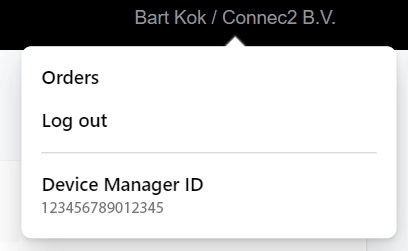
Provide your Device Manager ID and its associated email address.
The Device Manager ID is visible in the top-right of the Meta Device Management Console (see below).
Deployment & first run
- Your Device Manager accepts the App Invite in the Meta Device Management Console.
- Connec2 is made available to your managed devices according to your deployment policy.
- On headsets, Connec2 will appear on the home screen / app library (install may be automatic if enforced by policy).
- On first launch, enter the three Connec2 login fields using the credentials provided by your Connec2 contact.
For a quick tour of the Virtual Workspace, see Tutorials → Connec2 Client › Virtual Workspace.
Client for Windows 10/11 (Connec2 Uplink)
The Connec2 Client for Windows 10/11 is included within our portal application Connec2 Uplink, so you’ll need to install Uplink first.
For installation instructions, see Installation.
After installing Connec2 Uplink, you can easily launch the Connec2 Client from within it.
See Uplink Features → Start Connec2 Client for detailed steps.