Account management
Note: this document is intended for Admins and Power Users within your Connec2 Workspace.
Your Connec2 Workspace can only be accessed with a valid Connec2 Account. All accounts are managed in the Connec2 Management Console. Connec2 uses role-based access: depending on the role assigned to your account you can (or can’t) use specific features.
In this guide you’ll learn about the available roles and how to create new or edit existing accounts. We provide a simple set of roles to help you onboard users quickly.
Roles
Here is a quick summary of the available roles. For detailed capabilities, see Role authorizations below.
| Role | Description | Can create, edit & delete users |
|---|---|---|
| Admin | Full access to Workspace and all features | Admin, Power User, User & Guest |
| Power User | Access to most features | User & Guest |
| User | Basic access | No |
| Guest | Can access Workspace, no features enabled | No |
Connec2 Management Console
- Go to the Connec2 Management Console: https://connec2.app/en/login
- Enter your Workspace ID to continue.
- Click Sign In (top right) and authenticate with your credentials.
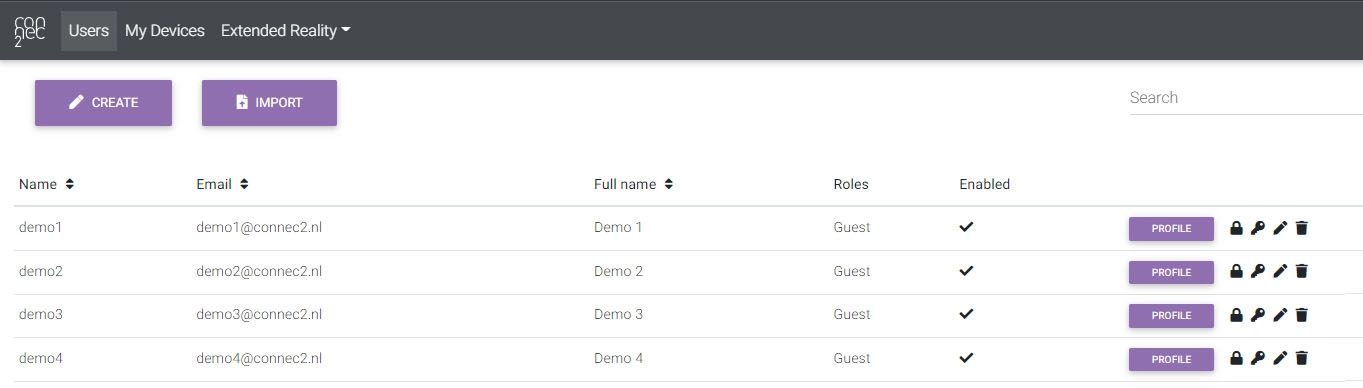
If you’re an Admin or Power User, you will see a Users tab (top-left) showing all accounts in your Workspace.
Note: Power Users cannot see or edit Admins.
Create a new account
- Click CREATE (top-left) to open the Create user form.
- Complete the required fields.
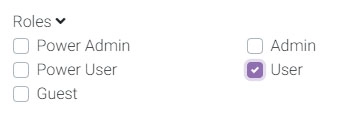
- Assign a role to the new user.
- When selecting multiple roles, the highest one will be leading (Guest → User → Power User → Admin).
Edit an existing account
To change a user’s role, click the marker icon for that user and select the new role
(remember: highest selected role is leading).
Common actions:
- Profile button — view profile information
- Lock icon — change password (Admin only)
- Key icon — change role authorizations
- Marker icon — update user
- Trashcan icon — delete user
Editing role authorizations (fine-grained)
Click the key icon for a user to open Change role authorizations.
Legend:
- Unchecked — feature not available for this account
- Checked (dark) — manually enabled for this account
- Checked (light) — enabled by default via current role
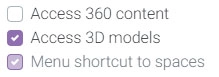
See the detailed matrices below.
Role authorizations
- “Default enabled” means the feature is available from that role or higher (User → Power User → Admin).
- Power Users only have access to the underlined authorizations in the Management Console UI.
Client
| Client | Role authorization | Description | Default enabled |
|---|---|---|---|
| Basic | Access 360 content | Allow the user to load 360 content | Power User |
| Basic | Access presentations | Allow the user to load presentations | User |
| Basic | Access 3D models | Allow the user to load 3D models | Power User |
| Basic | Select remote desktop | Allow the user to select and start remote desktop screens | Power User |
| Basic | Menu shortcut to spaces | Allow travel to spaces via menu shortcuts | User |
| Basic | Interact with SmartScreens | Allow interaction with SmartScreens | User |
| Advanced | Allow cinematic mode | Camera mode for streaming (PC only) | Power User |
| Advanced | Access restricted zones | Access restricted zones | Power User |
| Advanced | Access early access features | Allow access to early features | — |
Uplink
| Uplink | Role authorization | Description | Default enabled |
|---|---|---|---|
| Basic | Access 3D model editor | Access the 3D editor | Power User |
| Basic | Access presentation editor | Access the Presentation editor | User |
| Basic | Access 360 content editor | Access the 360 content editor | Power User |
| Basic | Access avatar editor | Access the avatar editor | User |
| Basic | Allow Windows client | Start the Connec2 Client for Windows | User |
| Basic | Host remote desktop | Host own desktop | Power User |
| Advanced | Enable management console shortcut | Shortcut to online workspace console | Power User |
| Advanced | Access branding editor | Customize workspace visual identity | Admin |
Workspace Storage
| Workspace Storage | Role authorization | Description | Default enabled |
|---|---|---|---|
| Basic | Access 360 content from other users [1] | Access all uploaded 360 content in the workspace | — |
| Basic | Access presentations from other users [1] | Access all presentations in the workspace | — |
| Basic | Access 3D models from other users [1] | Access all 3D models in the workspace | — |
| Advanced | Manage content from other users [1] | Manage/delete accessible workspace content from other users | — |
| Advanced | Export content from workspace [1] | Export content from workspace | — |
[1] The “Workspace Storage” category will be deprecated over time and replaced by email-based sharing within the Workspace.
Identity Management
| Category | Role authorization | Description | Default enabled |
|---|---|---|---|
| — | Can change password | Change password in management console | Admin |
| — | Can import users | Import users in management console | Admin |